
You Won't Believe It - But I Still Can't Live Without tmux in the AI Era
You Won’t Believe It, But I Still Can’t Live Without tmux in the AI Era
说出来你们可能不信,都 2026 年了,AI 代码助手已经能帮你写完整项目了,但每天打开终端,我输入的第一个命令还是 tmux new -s work。
说出来你们可能不信,都 2026 年了,AI 代码助手已经能帮你写完整项目了,但每天打开终端,我输入的第一个命令还是 tmux new -s work。
It’s 2026. AI coding assistants can now write entire projects for you. But every single day, the first command I type into my terminal is still tmux new -s work.
A colleague asked me: “We’re in the AI era now. Why are you still using this 2007 relic?”
I said: “Relic? No. It’s the same old bottle, but filled with new wine.”
AI Is So Powerful — Why Can’t I Let Go of tmux?
Honestly, I did try the “modern” way of development.
For a while, I experimented with various AI programming tools — Cursor, Windsurf, Copilot Workspace. These tools are genuinely impressive. They can generate code, explain code, even refactor entire modules for you.
But every time I used them, I found my attention fragmenting.
Problem One: Too Many Windows
AI tools are usually web interfaces or standalone apps. To use AI to help you code, you have to:
- Open an editor to write code
- Switch to a browser to ask AI questions
- Copy AI’s answers back into the editor
- Run to see results
- Switch back to browser to continue
Every window switch interrupts your flow. Research shows it takes an average of 23 minutes to refocus after an interruption.
Problem Two: AI Output Is Too Long
AI responses are often wall-to-wall text. When I ask AI to “analyze this function’s performance,” it can produce a 500-line analysis report. Finding the key conclusion among all those lines? Your eyes go blurry.
Problem Three: SSH Disconnect = Work Lost
This is the most painful one. Sometimes I’m having AI generate a complex command, or debugging a tricky problem, when suddenly —
“Connection to server closed.”
SSH disconnects.
If I were using a regular terminal, I’d have to:
- SSH back in
- Try to remember where I was
- Re-run previous commands
- Discover some state is lost
- Have a mental breakdown
But now?
1 | |
One second later, I’m right back where I left off. vim is on line 142, the AI terminal still has the conversation history, the log window is still scrolling. Every window, every state, preserved completely.
This is the magic of tmux sessions: Your work is a “living” state, not a “dead” terminal.
Part One: Split Panes Are the Right Way to Work with AI
What’s the correct way to use AI-assisted programming today?
My answer: tmux + vim + AI terminal + log monitoring, three windows open simultaneously, each doing its job.
1 | |
This is my daily standard layout:
Left vim: Write code, use vim-slime or copy-paste to bring in code snippets from AI
Right AI terminal: Ask AI questions, see AI’s analysis results, have AI review your code
Bottom log window: tail -f to see logs in real-time, verify AI’s code changes immediately
Three windows visible at once, no switching, no Alt+Tab, no getting lost between windows.
When AI tells me “there’s a problem with this code,” I just glance down at the log window to see if there’s actually an issue. When AI gives an optimization suggestion, I can edit it directly in vim while watching the logs for effect.
This “immersive AI programming” experience is way better than constantly switching between windows.
Part Two: Session Persistence — AI Tasks Don’t Fear Disconnection
This is the most important tmux feature, the one that made me completely dependent on it.
Scene replay:
3 PM. I’m having AI help me write a complex data processing pipeline. AI gave me 200 lines of code. I’m reading through it line by line, when suddenly —
“Connection to server closed.”
SSH disconnected.
With a regular terminal, I’d have to:
- SSH back in
- Try to remember where I was
- Re-run previous commands
- Discover some state is lost
- Mental breakdown
But now?
1 | |
One second. Back to where I left off.
The lifecycle looks something like this:
1 | |
detach and attach — this is the essence of tmux.
Ctrl+b d: Temporarily detach from session (session keeps running in background)tmux attach: Reconnect to session (everything exactly as you left it)
With this, I’m never afraid of SSH disconnects. Heading home and suddenly remember an unfinished task? No problem. Tomorrow at work, tmux attach, continue where you left off.
Part Three: Copy-Mode — Precision Navigation in AI’s Long Output
One characteristic of AI output: It’s long. Very long.
Sometimes you ask AI a technical question, and it writes you a small essay. Code, explanations, suggestions, caveats — hundreds of lines.
Finding the few lines you actually need among hundreds? Scanning with your eyes? You’ll exhaust yourself.
But with tmux copy-mode, everything becomes simple.
Traditional copy-mode:
Ctrl+b [enter copy-mode- Arrow keys to move line by line
- See something you want to copy?
Spaceto start selection Enterto confirmCtrl+b ]to paste
This is already pretty good, but tmux copy-mode has an even more powerful feature: Regex search jumping.
After entering copy-mode, press / to search. Want to find the handle_request function? /handle.*request, Enter, jump directly to the first match. Press n for next match, N for previous.
1 | |
Imagine this scenario: AI gives you 500 lines of code analysis and refactoring suggestions, with a dozen places that need changes. Before, you’d scroll with your mouse until your eyes glazed over. Now? /, n n n, precisely locate every一处.
This is what tmux taught me: Good tools don’t give you more features — they get you to where you want to go more efficiently.
Part Four: My Modernized .tmux.conf
After using tmux for years, my configuration has evolved. Here are the options I think are most valuable in the AI era:
1. Key Binding Optimization — Save Your Pinky
The default prefix key is Ctrl+b. This combination isn’t kind to small hands (needing to press Ctrl and b simultaneously is tough on the pinky).
I changed it to Ctrl+a:
1 | |
Now just press Ctrl+a. Way more comfortable than Ctrl+b.
2. Mouse Support — Operate tmux with Your Mouse
1 | |
With mouse support enabled, you can:
- Resize panes with mouse
- Select text with mouse
- Click to switch panes
- Scroll history with mouse wheel
Very beginner-friendly for GUI users transitioning to terminal.
3. Status Bar Makeover — See State at a Glance
1 | |
Status bar now shows current time, window list, current window highlighted.
4. Faster Response — Reduce Latency
1 | |
escape-time 0 is especially important for vim users because it reduces the delay between keypress and vim response.
5. Copy-Mode Optimization — Better Text Selection
1 | |
Using vi-style shortcuts for copy-mode means zero learning curve for vim users.
Part Five: tmux + AI = Multiplied Efficiency
After saying all this about tmux, someone might ask: In the AI era, where does tmux add value?
My understanding is this:
AI handles “thinking,” tmux handles “executing.”
AI’s strengths are generation, reasoning, explanation. What AI isn’t good at:
- Long-running tasks
- Real-time state monitoring
- Maintaining context continuity
- Multi-task parallel processing
These just happen to be tmux’s strengths.
Let me give a few concrete examples:
Example One: AI Generation + tmux Monitoring
Have AI generate a data processing script, run tail -f in tmux to watch logs in real-time, while AI explains errors in the log in another window. No switching, focus on one screen.
Example Two: AI Parallel Dialogues
Open multiple tmux panes, chat with different AIs simultaneously — one helps with frontend, one with backend, one with test cases. Three AIs working at once, efficiency multiplied.
Example Three: AI Debugging + Real-Time Verification
AI gives you a fix suggestion, edit it immediately in vim, watch the effect in the bottom log window. Not satisfied? Keep asking AI, keep editing, keep watching. The entire debug loop completes in one screen.
This is what I mean by “multiplied efficiency”: It’s not tmux making you faster, and not AI making you faster — it’s the combination that makes your workflow a smooth loop.
Reflection: From “Tools” to “Workflow” Thinking
While writing this article, I took stock of my tool usage habits over the years.
When I started working in 2015, I used putty to connect to servers, pure command line. Back then, the terminal was everything — the mouse was superfluous.
In 2018, I started using tmux. Wow, split panes are great, session persistence is great. But then VS Code came along with its powerful remote development plugins, and tmux got shelved again.
In 2023, AI arrived. Countless AI programming tools emerged. I tried pure GUI AI programming, but something always felt off.
Until 2025, when I picked up tmux again and realized: It’s not that GUI is bad, nor that AI is bad. It’s that they weren’t well integrated with each other.
tmux gave me a “container” — a space where I could integrate AI, vim, log monitoring, and various tools together. In this container, AI isn’t another window to switch to — it’s part of my workflow.
Good workflows don’t pile on tools. They make tools work together, each doing its job.
In the AI era, tools aren’t lacking. What’s lacking is people who can use tools efficiently.
What tmux taught me: Good workflows don’t need complex UIs. Simplicity is the ultimate efficiency.
Those flashy AI programming tools are genuinely powerful. But if your workflow design is poor, they just distract you. A simple tmux layout combined with the right AI tools lets you focus on what really matters — solving the problem itself.
The same old bottle, filled with new wine. Tools don’t age; only how we use them keeps evolving.
Author: A regular worker who still uses tmux in the AI era
Illustrations used in this article:
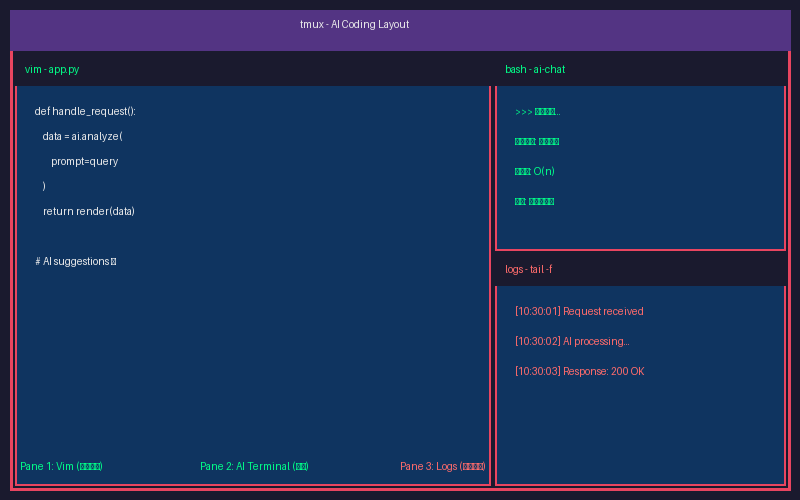
Figure 1: My standard AI programming layout — vim + AI terminal + log monitoring trio
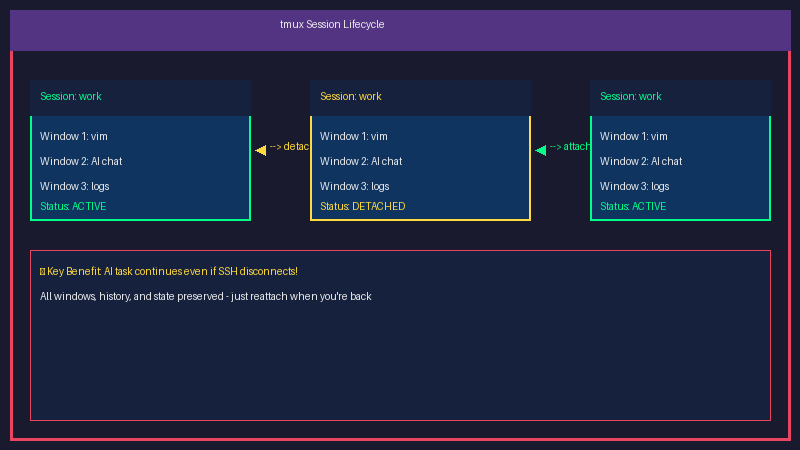
Figure 2: tmux session detach/attach lifecycle — don’t fear disconnects, work state preserved
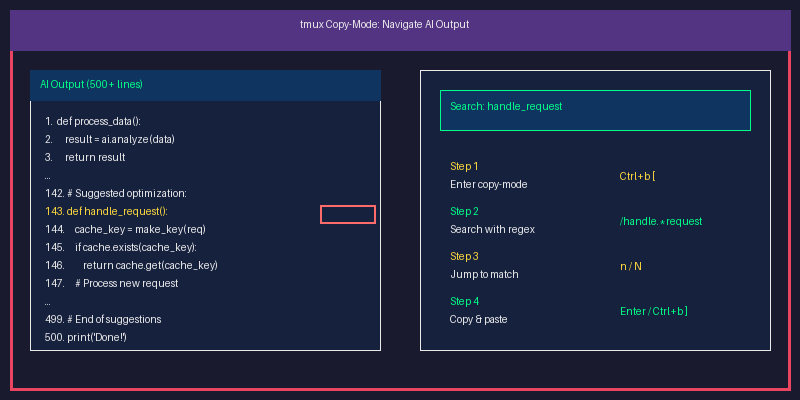
Figure 3: tmux copy-mode regex search — precisely locate key content in AI’s long output